All guides
Money
Quotes, invoices & getting paid
From “how much?” to money in the bank — build a quote, convert it to an invoice, and take a card.
6 min read
Quotes and invoices share one price book and one flow, so the phone and the paperwork can’t disagree. Here’s the full loop.
Build and send a quote
- 1Go to Work → Quotes → New quote and pick the customer.
- 2Add line items — start typing to pull from your price book, or enter a freeform line. The total computes as you go.
- 3Add notes/terms and an optional deposit, then save.
- 4Send it by Text, Email, or copy the link — the customer opens it on their phone, no account needed.
app.getjobone.com/quotes
Tip
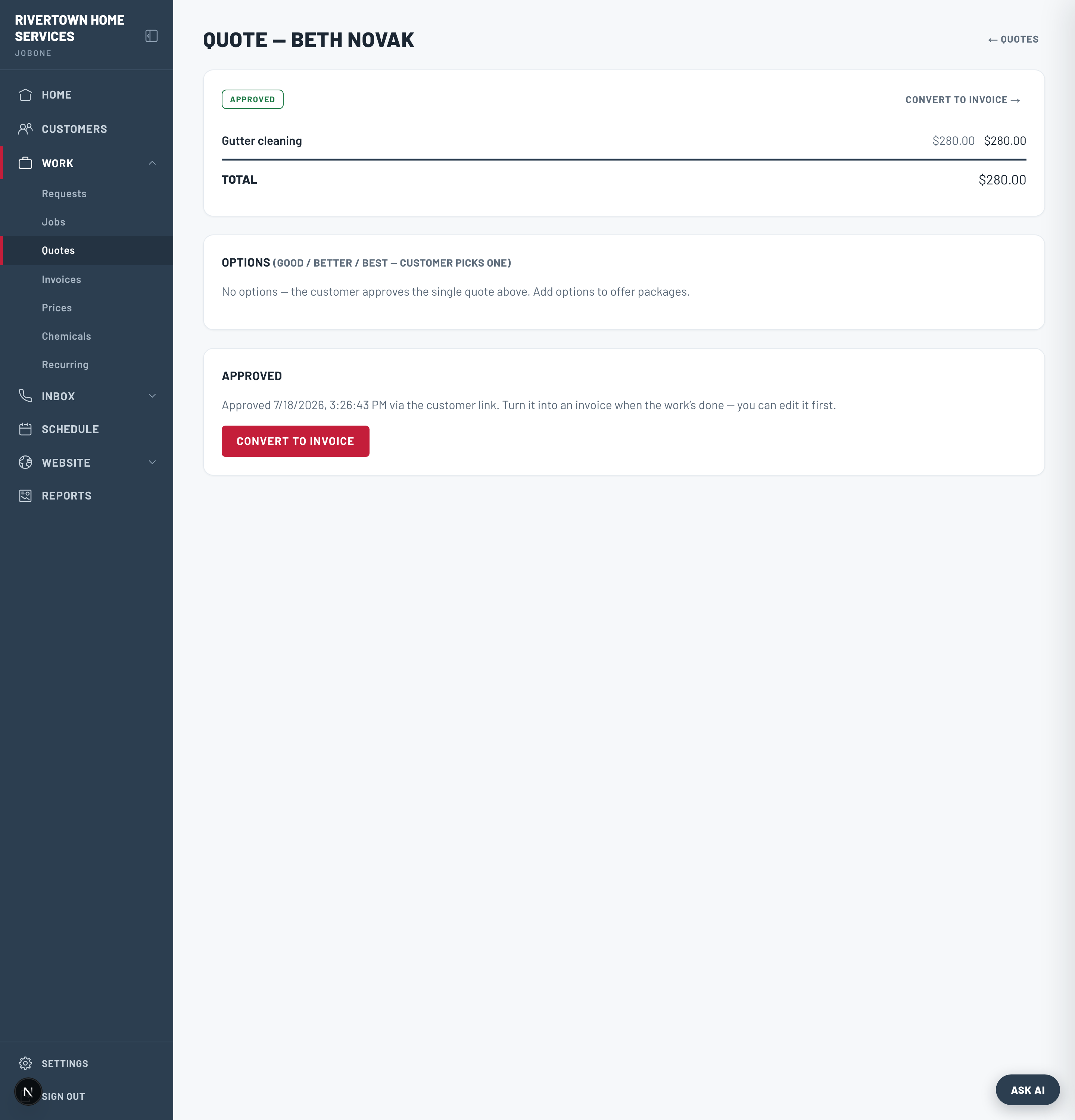
The customer can approve — and even sign — right from the link. Good/Better/Best options and a required deposit are supported on the quote.
Turn it into an invoice
When the work’s done, open the approved quote and choose “Convert to invoice” — the customer and line items carry over, editable. Or invoice straight from a completed job.
app.getjobone.com/invoices
Get paid
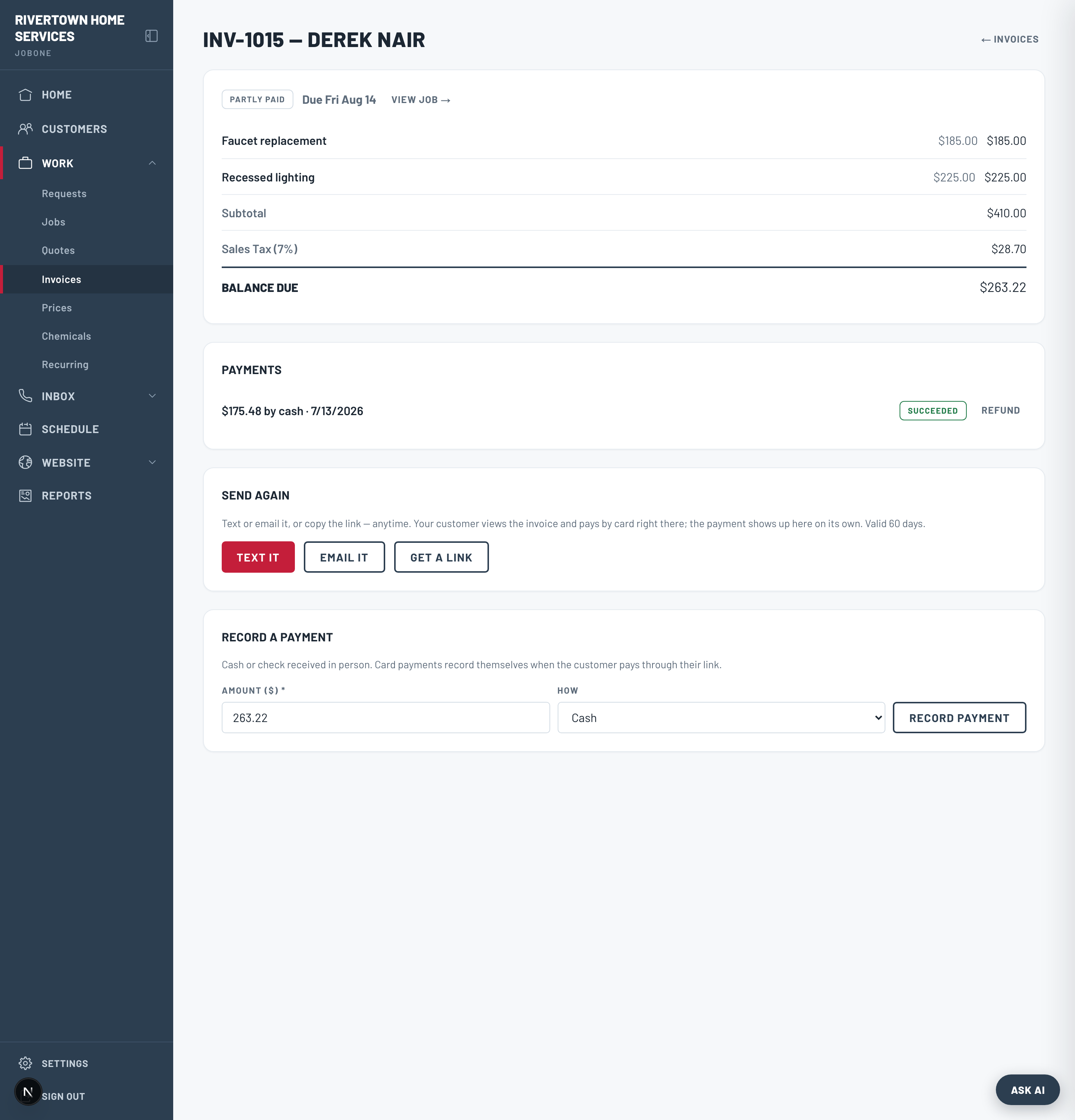
- Card — the customer taps the invoice link and pays by card; the payment reconciles itself against the invoice.
- Cash or check — record it under “Record a payment” and the balance updates (partial payments are fine).
Note
Card payments need Stripe connected once, under Settings → Accept card payments. Until then the invoice link still shows a “pay by cash or check” option.