Scheduling
Scheduling & the route map
Run your week in day/week/month, put the day’s stops in driving order, and subscribe on your phone.
5 min read
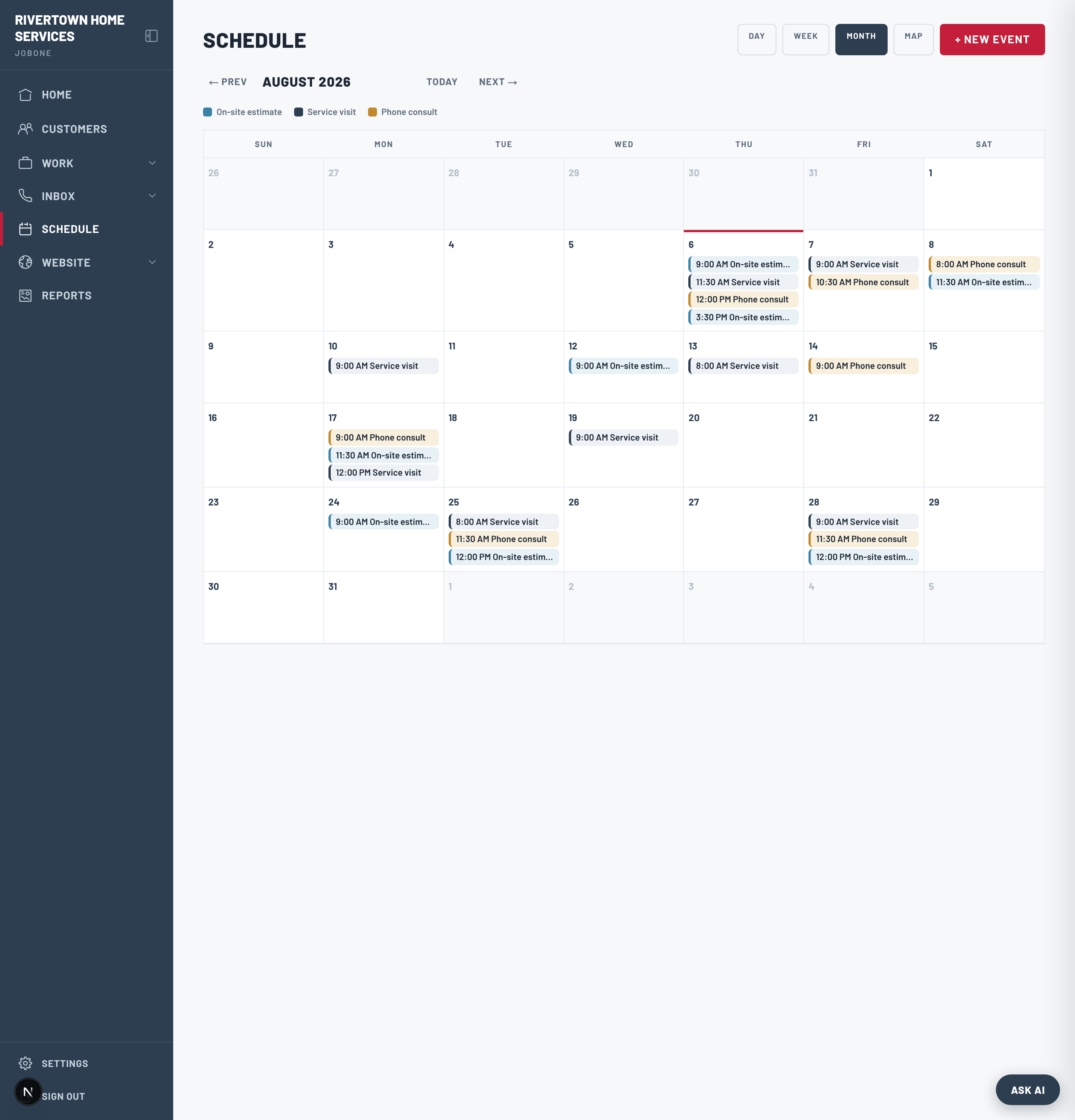
Your calendar is one place your whole crew works from. The AI books into it, and you can add, edit, and reassign anything by hand.
Add and manage work
- 1Open Schedule and use Day / Week / Month to find the right view.
- 2Click “+ New event”, pick the customer, meeting type, time, and (if you have a crew) who’s assigned.
- 3Click any block to reschedule, change status, or cancel — every change flows out to the customer’s reminders.
Run the day with the route map
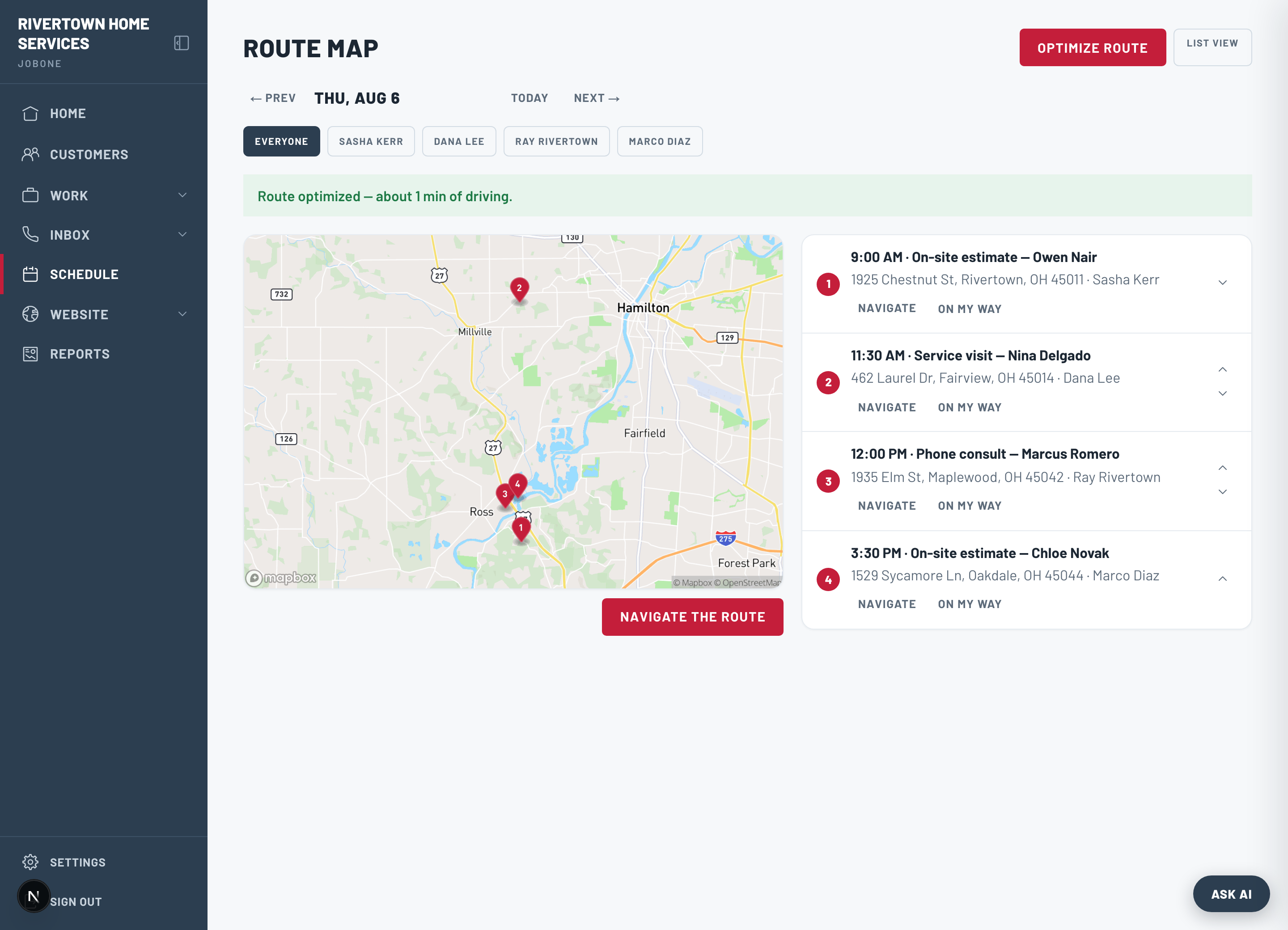
Switch Schedule to the Map view to see the day’s stops as pins. “Optimize route” puts them in the fastest driving order; “Navigate the route” hands the whole thing off to your phone’s maps app.
Put your schedule on your phone
In Settings → “Add your schedule to your phone”, copy your private calendar link and subscribe to it in Apple Calendar, Google Calendar, or Outlook. Your JobOne jobs then show up next to your personal events, always current.
Turn on appointment reminders in Settings → Notifications to text customers before their visit and cut no-shows.